
When you have to type something fast or when you have a lot of text to type, typing on a touchscreen can be a time-consuming experience. Fortunately, Android has a voice typing facility where you can speak rather than type. With the help of the microphone symbol that shows up on your keyboard, this becomes possible. But in case you have observed that the microphone icon is not present, you are not alone. It is a common problem that many Android users encounter, usually, after system updates or permission changes.
This guide will show you how to add the microphone to your keyboard on Android, how to turn voice typing back on, and how to resolve the problem with various keyboards including Gboard, Samsung Keyboard, and SwiftKey.
Table of Contents
Why the Microphone Disappears from the Keyboard
The absence of the microphone icon is typically due to some common issues. Voice typing could be off, microphone access has been disabled, or a newer update could have restored your keyboard preferences. In other instances, third party apps intervene on the input settings making some icons such as the microphone to be concealed temporarily.
It is a good practice to test your microphone device first. Launch the Voice Recorder or Google Assistant application and speak into your phone. This issue is in the software settings and your microphone hardware is not the problem, as long as your voice is detected.
How to Add Microphone to Keyboard on Android
Step 1: Open Keyboard Settings
Go to the Settings on your Android device. Then navigate to System, and then to Languages and Input. Choose On-screen Keyboard or Virtual Keyboard based on the model of your phone. There will be a list of the keyboards available including Gboard, Samsung Keyboard, or SwiftKey. Choose the default one.
Step 2: Enable Voice Typing
When you are using Gboard, tap Gboard and then Voice Typing. Select the option of Use Voice Typing. This allows speech-to-text support on every application that allows text input. Also, you can turn on Offline Voice Typing, which will allow you to use this feature even without access to the internet.
Step 3: Grant Microphone Permission
Again, open Settings, and then select Apps and choose your keyboard application- most of the times it would be Gboard. Tap Permissions and ensure that the Microphone permission is set to Allow. In case this permission has been switched off, you will not see the microphone icon on your keyboard.
Step 4: Check Toolbar and Suggestion Strip
In more recent Gboard versions, the microphone icon can be found in the toolbar or suggestion strip in the bottom right of the keyboard. The mic icon will not be available in case that bar is covered. The easiest way to resolve this is to open any application that allows typing in some text, then access the gear icon in your keyboard and activate the feature to Show Toolbar or Show Suggestion Strip. After doing this, the microphone icon will reappear.
How to Add Microphone to Samsung Keyboard
The settings in Samsung devices have their own keyboard, which is slightly different compared to Google Gboard. To fix the microphone icon, tap the Settings button and choose the General Management. Then, choose Keyboard List and Default, and Samsung Keyboard. You will find the alternative of Voice Input here- make sure you have it enabled.
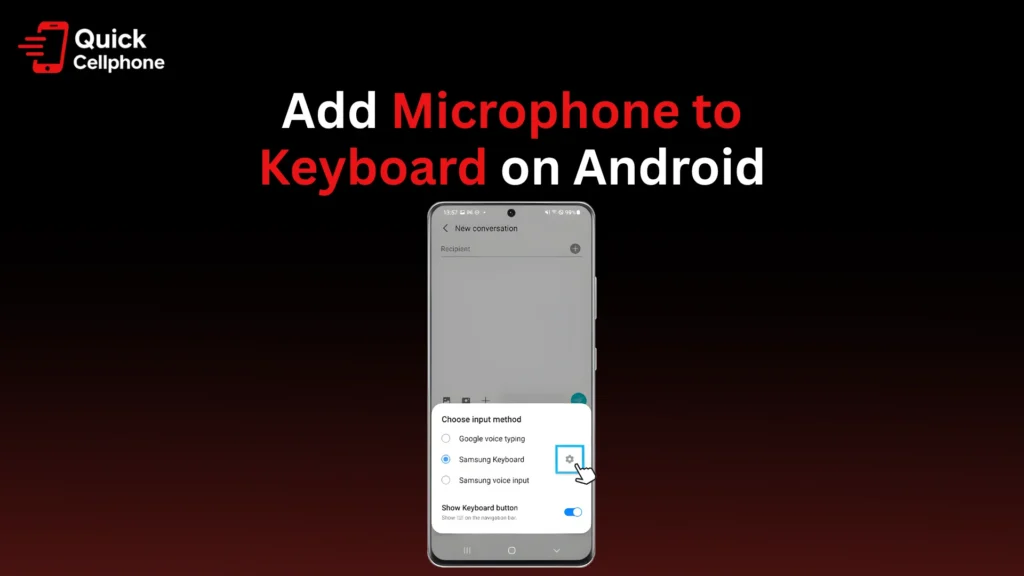
Enabling Show Keyboard Button on Navigation Bar is also important because in this way important icons will be shown. You can press the space bar and hold it to use voice input when typing. In case the microphone still does not appear, temporarily make Gboard your default keyboard and then go back to Samsung Keyboard. This updates system icons and tends to restore the microphone button.
How to Enable Voice Typing on Other Keyboards
A significant number of Android users would like to use SwiftKey or third-party keyboards. These applications are based on either Google Voice Typing or Microsoft Voice Input. To verify this, open Settings and then System, then Languages and Input, and then On-screen key board.
Ensure that Google Voice Typing is on. Open the SwiftKey settings app in case you are using SwiftKey. Open Typing, and either Voice Input or Dictation and switch the option on. Also, don’t forget to grant microphone authorization by going to Settings, then Apps, SwiftKey and be sure to enable the Microphone authorization.
After turning on, the microphone icon can be found in most instances when you long press on the comma or the keyboard menu button.
Fixing Microphone Missing After Android Update
App settings usually get changed or permissions are reset as software updates and this makes the microphone disappear in your keyboard. There are easy steps that you can take to resolve this problem.
Recheck Permissions
Open the Settings, Apps, and then, select your keyboard app, e.g., Gboard. Select Permissions, then Microphone and change it to Allow only during the use of the app. This is to make sure your keyboard can reach the microphone of your device whenever it is working.
Clear Cache and Data
Icon can also be hidden in old or corrupted cache files. To fix this, navigate to Settings, Apps and choose Gboard. Tap Storage, then Clear Cache. When that fails, tap Clear Data, and the settings of the app will be restored to default.
Update or Reinstall Keyboard
Open the play Store and use it to find your keyboard. tap Update To update, when possible. In case you already have the latest version and the microphone is still not visible, uninstall and reinstall the app to reset to its default settings.
Reset App Preferences
In case nothing assists, find your way to Settings, Apps, and tap Reset App Preferences. This recovers all default settings, notifications and application defaults without erasing any personal information. It serves as a good method of recovering lost functionality of the system such as the keyboard microphone.
Advanced Troubleshooting
In case your microphone icon is still missing, you may also use some sophisticated procedures.
Check Microphone Hardware
Open Google Assistant or the Voice Recorder app and talk normally. In case the app does not identify your voice, your microphone can be clogged or broken. You may also take off the phone case or clean the mic section in case it has a cover.
Use Safe Mode
Safe Mode temporarily mutes third-party apps. Hold the Power button and tap and hold Restart until you enter into the Safe Mode. After getting in Safe Mode, have a look at your keyboard and see whether the microphone icon shows up again. In case it does, one of the apps installed might be interfering with your keyboard functionality.
Try an Alternative Keyboard
In case your default keyboard still does not work, try to use another one. Both Gboard and SwiftKey are good options with their voice typing capabilities being stable. They can be installed through the Google Play Store and turned on in your input settings.
Managing Privacy and Microphone Permissions
Android allows you to have complete control over which applications are able to use your microphone. To manage or revoke these permissions, open Settings, Privacy, and Permission Manager, and tap Microphone. In this case, you will find all apps that have access to the mic. Turn off any apps that you do not trust but leave microphone access to your keyboard and Google Voice Typing.
In case you have enabled Sensors Off quick-setting in the Developer Options, microphone will be turned off throughout the phone. Turn Sensors on again to enable voice input.
Conclusion
One of the most useful tools of Android is voice typing, which is convenient and can accelerate communication. When the microphone icon on your keyboard has vanished, it is normally a permission or settings problem, which can easily be solved.
Regardless of whether you use Gboard, Samsung Keyboard or SwiftKey, it is easy to enable voice typing and to restore the microphone once you know where to find it. Always make sure that your keyboard app is up to date, give it permission to access the microphone and also make sure that you check your input settings. In this way you will never miss easy hands free typing when you want to.
FAQs About How to Add Microphone to Keyboard on Android
Why is the Microphone Missing from My Keyboard?
When voice typing is disabled, permissions are revoked, or the toolbar of the keyboard is concealed, the microphone icon is removed. Enabling Use Voice Typing in Gboard tends to fix the issue.
How Do I Enable Microphone on Keyboard Android?
Click on Settings, then System, and Languages and Input. Open On-screen Keyboard, click on Gboard and map on Use Voice Typing.
How Can I Add Microphone to Samsung Keyboard?
Go to the Settings, choose General Management, Keyboard List and Default. Tap Samsung Keyboard and allow voice input. There is also the option of pressing and holding the space bar to begin voice typing.
The Microphone Icon Is Gone After an Update. What Should I Do?
Ensure the microphone is turned on in your keyboard, wipe its cache and ensure that the app is up to date. In case the icon has not been shown yet, reboot app preferences.
Can I Use Voice Typing Without the Internet?
Yes. Turn on Offline Voice Typing in Gboard settings where speech-to-text can still be used without an internet connection.